


Azure Virtual Desktop vs Windows 365: Which Platform Is Right for Your Organisation?

Updated: Jun 2
Hi all, Alex Durrant here again, Senior EUC Consultant at HybrIT. Following on from my last post about the Microsoft 365 pricing changes, I wanted to cover a question that comes up in pretty much every virtual desktop conversation we have with customers.
"Should we go with Azure Virtual Desktop or Windows 365?"
Both are Microsoft cloud desktop solutions, both run on Azure, and both let users access a Windows desktop from practically any device. In practice they're quite different products aimed at different needs, and picking the wrong one can cost you either money or significant operational headaches. Having deployed both across a range of customer environments, here's how I'd think about it.
What Are They?
Azure Virtual Desktop (AVD) is Microsoft's infrastructure-level virtual desktop service. You're provisioning and managing virtual machines in Azure, configuring host pools, session hosts, FSLogix for user profile management, and scaling policies. The key differentiator is multi-session Windows, where multiple users share the same underlying VM simultaneously — that's where the cost efficiency comes from at scale, but it's also where the complexity lives. AVD supports Windows 11 Enterprise in both single and multi-session, as well as Windows Server session hosts (with newer releases such as Windows Server 2025 supported for specific capabilities like App Attach).
Windows 365 is Microsoft's Cloud PC product. Microsoft handles the underlying compute infrastructure; you get a dedicated persistent Cloud PC per user (or shared, depending on the licence type). You provision through Intune, pick a configuration, assign it to a user, and that's largely it. The VM runs in Microsoft's Azure subscription, not yours, so you're not directly managing or incurring the Azure compute cost. Windows 365 only supports Windows 10/11 Enterprise in single-session, there's no multi-session and no Windows Server support.
Worth briefly noting: Windows 365 comes in two editions. Enterprise is designed for organisations using Intune, supports custom images and corporate networking, and is what we focus on throughout this post. Business is a simpler, self-managed option for very small organisations or individuals that requires no Azure subscription and no Intune usage unless you choose to manage the Cloud PCs through Intune
The simplest way to think about it: AVD is a platform you build on. Windows 365 is a product you subscribe to.

The Windows 365 Licence Family
Windows 365 is broader than most people realise. Here's a quick rundown of the main licence types and what they're actually for.
Enterprise
Gives each user their own dedicated, persistent Cloud PC. Always on, always theirs. Supports both Entra ID join and Entra Hybrid Join, managed through Intune alongside physical devices. Available across a wide range of configurations from entry-level SKUs for light productivity through to GPU-enabled options for more demanding workloads. Custom images are supported (single‑session only, with service limits applying).
Right fit for:
Knowledge workers who need a consistent, persistent desktop
Users with specialised applications or configurations that need to be retained
Roles where performance predictability and data isolation matter
Users with GPU requirements who need a managed, dedicated cloud desktop
Frontline
Designed for organisations where not every user needs their own always-on Cloud PC. Comes in two distinct modes and it's worth understanding the difference.
Dedicated mode - one licence covers up to three Cloud PCs, each assigned to a specific named user, with only one active at a time. Each user still has their own persistent machine with data and settings intact between sessions. The Cloud PC powers down after sign-out (following a short grace period) and powers back on when the user connects.
Good fit for:
Rotating shift workers with non-overlapping schedules
Part-time staff who don't need constant access
Teams spread across different time zones
Compared to Enterprise, Frontline Dedicated can deliver around a 67% cost reduction for qualifying use cases.
Shared mode - one licence contributes to a pool of Cloud PCs sized for expected concurrency. Users connect on a non‑concurrent basis, and the underlying Cloud PC isn’t dedicated to a single user. To provide a consistent experience, Frontline Shared supports User Experience Sync, which preserves personalisation, user settings, and application data by attaching individual user storage at sign‑in and detaching it at sign‑out. It’s important to note that this isn’t the same as a fully persistent dedicated Cloud PC and isn’t designed for complex application state or heavily customised desktops.
Good fit for:
Warehouse or factory floor workers needing brief, occasional access
Retail staff sharing a terminal for specific tasks
Customer-facing workers and external contractors
Reserve
Aimed at DR and business continuity scenarios. Each licence gives a user up to 10 days of Cloud PC access per year, provisioned only when needed. Pre-configure provisioning policies, applications, and security settings in Intune in advance and when something goes wrong, Cloud PCs are ready to activate quickly. Worth serious consideration if you're currently keeping an AVD environment running at low utilisation purely for DR purposes.

Windows 365 Features and Hardware
Boot
Lets IT configure a physical Windows 11 device so users go straight into their Cloud PC on sign-in rather than the local OS. Supports both dedicated device scenarios (one user, one Cloud PC) and shared device scenarios where multiple users each land in their own Cloud PC from the same hardware. Useful in:
Healthcare settings such as nursing stations
Manufacturing and warehouse environments
Retail and call centre deployments

Link
Microsoft's purpose-built Cloud PC device. Compact, fanless, no local storage, no local admin accounts. Security features including Secure Boot, BitLocker, and Defender EDR are enabled by default and cannot be disabled. Managed through Intune alongside all other devices. Designed for hot-desking and anywhere you want to strip out the local endpoint entirely. Third-party validated thin clients from 10ZiG, HP, Dell, Lenovo, and IGEL are also available if you're already standardised on a particular brand.

Cloud Apps
Rather than provisioning a full desktop, Cloud Apps lets you publish individual applications that appear in the Windows App under a dedicated section. It runs on Frontline Shared Cloud PCs and is worth considering if you want to move published application delivery away from a legacy on-premises VDI environment without giving every user a full desktop.

Azure Virtual Desktop: Management Overview
With AVD, Microsoft manages the control plane — web access, the connection gateway, connection brokering, load balancing, and diagnostics. You manage everything else: session host VMs, the Windows image, user profiles, networking, scaling, and updates. Connections use reverse connect transport, meaning session hosts don’t listen for inbound RDP connections and instead use outbound connectivity to the Azure Virtual Desktop service over HTTPS.


AVD Features
Host Pools
A host pool is a collection of identical Azure VMs acting as session hosts. There are two types:
Pooled host pools let multiple users share a VM, distributing sessions across the available session hosts. This is the multi-session model unique to AVD, Windows 11 Enterprise multi-session is exclusive to Azure Virtual Desktop and is not available elsewhere. Pooled deployments use one of two load balancing modes:
Breadth-first — distributes new sessions across available hosts to reduce contention and deliver a more consistent user experience.
Depth-first — fills one session host to its maximum before moving to the next. Useful for reducing the number of powered-on hosts outside peak hours, supporting cost optimisation.
Personal host pools assign a dedicated VM to each user. Users can typically have local admin rights, install applications, and make changes that persist across sessions. This functions similarly to a Windows 365 Enterprise Cloud PC but you retain full Azure-level control and carry the associated management overhead.
FSLogix
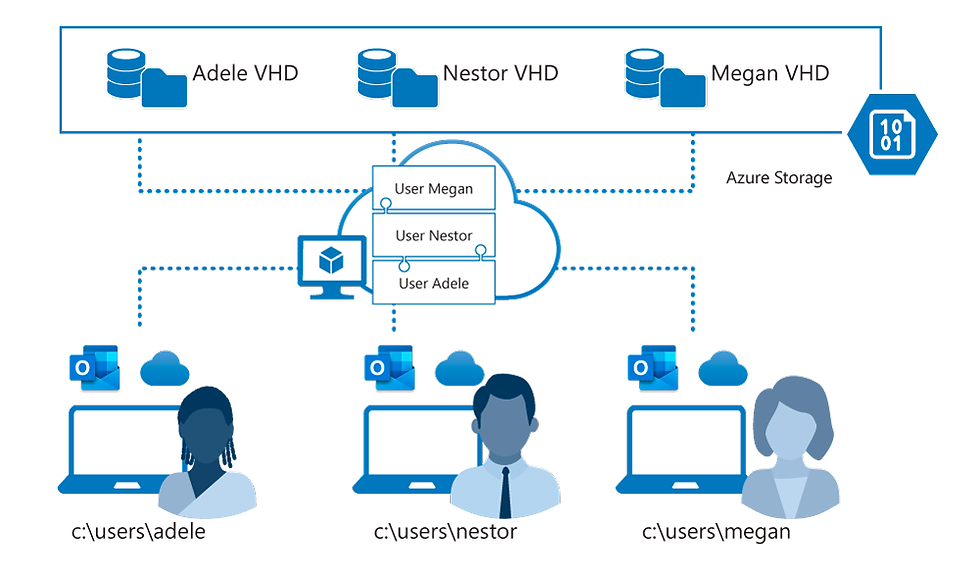
In pooled deployments, user profiles need to roam between session hosts so that users get a consistent experience regardless of which VM they land on. FSLogix handles this by containerising each user's profile as a VHD stored on Azure Files, which is dynamically mounted at sign-in. The profile appears to the user exactly as if it were local, and sign-in times are fast even in large environments.
FSLogix also includes App Masking, which allows IT teams to install all applications on a single golden image and then selectively show or hide applications based on user or group membership. In a host pool serving multiple departments, say HR and Finance, App Masking means you don't need separate images for each group. Both teams see only the applications relevant to them, from the same underlying image.
Windows 365 doesn't use FSLogix. Profiles are stored natively on the Cloud PC's C: drive, just like a physical PC. That's simpler to manage, but it means thinking about user data protection - OneDrive Known Folder Move is the typical approach.
Scaling Plans
One of AVD's biggest cost advantages over Windows 365 is the ability to automatically power session hosts on and off based on demand. Outside of peak hours, hosts can be deallocated to stop Azure compute charges. A well-configured scaling plan aligned to your organisation's working patterns can significantly reduce running costs compared to leaving machines on 24/7.
This is also one of the most common failure points in poorly designed environments. Session hosts running through the night with no users connected is one of the first things we check when taking over an AVD environment that someone else set up.
Image Management
You need a strategy for managing your session host image. The baseline approach is a golden image — a manually maintained VM snapshot that you update periodically and reference in your host pool. Most organisations start here and it works well enough.
Azure Image Builder (AIB) automates the process. You define your customisations (applications, agents, configurations) in a template, and AIB builds a versioned image on demand, stores it in an Azure Compute Gallery, and makes it available to your host pools. It removes manual effort, ensures consistency across builds, and makes it straightforward to maintain separate images for different user groups. Not a day-one requirement, but worth planning for as the environment matures.

App Attach
AVD supports App Attach for dynamic application delivery, MSIX, AppX, and App-V packages can be streamed to user sessions without being installed on the base image. Applications are stored separately on Azure Files and attached to the user's session at sign-in. This means you can update, patch, or remove an application centrally without touching the session host image, and you can assign different applications to different users within the same host pool. App Attach is not available on Windows 365.
RemoteApp
AVD supports publishing individual applications to users rather than full desktops. A user might work primarily on their physical device but need access to a specific line-of-business application that can't be installed locally, RemoteApp streams that application as if it were running locally, within its own window. Windows 365 Cloud Apps offers something similar via Frontline Shared Cloud PCs, but RemoteApp in AVD is more established and better suited to enterprise use cases.
Monitoring
AVD monitoring is done through Azure Monitor and Log Analytics. You can capture session host health, connection diagnostics, user session data, and capacity utilisation, then visualise it through the AVD Insights workbook. We configure proactive alerting for session host availability, CPU and memory thresholds, and connection failures as standard on every AVD deployment.
Azure Virtual Desktop vs Windows 365: At a Glance
Comparison | Azure Virtual Desktop | Windows 365 Enterprise |
|---|---|---|
Model | Infrastructure you build and manage | Service you subscribe to |
Billing | Azure consumption (variable) | Fixed per user per month |
Multi-session | Yes — exclusive to AVD | No — single session, dedicated per user |
Persistent desktop per user | Personal host pools only | Yes — Enterprise and Frontline Dedicated |
OS support | Windows 10/11 Enterprise (single and multi-session), Windows Server session hosts (2019, 2022, with newer releases such as 2025 supported for specific capabilities) | Windows 10/11 Enterprise only |
Profile management | FSLogix required for pooled deployments | Native C: drive profile on dedicated Cloud PCs. No FSLogix; OneDrive (Known Folder Move) used for data protection. Frontline Shared can optionally use User Experience Sync. |
FSLogix App Masking | Yes | No |
GPU support | Yes | Yes (select Enterprise SKUs) |
Custom images | Unlimited | Supported (single‑session only; service limits apply) |
App delivery | Intune, image updates, App Attach | Intune or Custom Images |
RemoteApp (published apps) | Yes | No (Cloud Apps via Frontline Shared is separate) |
Scaling | Automated via Scaling Plans | Not applicable |
Backup and DR | Full Azure Backup and Site Recovery | Point‑in‑time restore with 10 short‑term restore points, 4 long‑term restore points, plus an optional manual restore point (Enterprise and Frontline Dedicated) |
Monitoring | Azure Monitor and Log Analytics | Intune Endpoint Analytics |
Management | Azure Portal + Intune (latter, if using Intune managed hosts, not a hard requirement) | Microsoft Intune (Windows 365 admin experience) |
Intune required | Optional (recommended) | Yes |
Microsoft 365 Apps | Requires Shared Computer Activation | Any Microsoft 365 subscription |
User self-service restart | Not available natively | Yes, via the Windows 365 portal |
Best for | Scale, cost efficiency, complex workloads | Simplicity, predictability, flexible access |
Typical sweet spot | 50+ users, pooled deployments | Smaller deployments, shift workers, DR |
Where Each One Makes Sense
Go with AVD when:
You have a larger user population (often 50+ users, not a hard and fast rule — classic IT consultant answer of “it depends”) and want cost efficiency through pooled multi-session deployments
You need true multi-session Windows, which is exclusive to AVD
You need to publish specific applications via RemoteApp
You need App Attach for dynamic application delivery without modifying the base image
You need FSLogix App Masking to serve multiple user personas from a single image
You have GPU workloads requiring a scalable shared pool
You need Windows Server session hosts for legacy or specialised workloads
You have complex networking requirements with on-premises connectivity via ExpressRoute or VPN
Go with Windows 365 when:
You want virtual desktops without the overhead of managing Azure infrastructure
Your IT team doesn't have deep AVD experience and you need to be up and running quickly
You have shift workers or part-time staff who don't all need concurrent access (Frontline Dedicated)
You need kiosk or task-based access where the underlying desktop isn’t persistent (Frontline Shared)
Your primary use case is DR or business continuity with minimal running costs (Reserve)
You're running AVD in personal mode for dedicated desktops - Windows 365 Enterprise is often more cost-effective and simpler for an equivalent spec
You want users to be able to self-service restart their own Cloud PC without contacting IT
Can You Use Both?
Yes, and it's more common than you'd think. Some organisations run AVD for their pooled multi-session population and Windows 365 for knowledge workers or users who need a dedicated persistent machine. Intune, Entra ID, and Defender work consistently across both, so you're not running two separate management frameworks.

Licensing Prerequisites
Both solutions require:
Windows E3 Enterprise entitlement (included in Microsoft 365 Business Premium, E3, E5, and similar)
Entra ID P1
Microsoft Intune (required for Windows 365 Enterprise; optional but recommended for AVD)
One licensing point worth knowing: AVD requires a Microsoft 365 Apps subscription with Shared Computer Activation rights, since multiple users share the same session host. Windows 365 Cloud PCs are dedicated VMs so any Microsoft 365 subscription that includes Office apps is sufficient.
As covered in my last post, several Intune capabilities relevant to both platforms including Advanced Analytics and Remote Help are being folded into E3 and E5 from July 2026. Worth factoring in if you're doing a licensing review at the same time as a virtual desktop evaluation.
In Conclusion
Windows 365 is the easier product to get right from day one. Predictable costs, simpler management, no Azure subscription needed for basic deployments, and the Frontline licence types give it a lot of flexibility for scenarios people often overlook, particularly DR, shift workers, and shared device environments.
AVD is the more powerful platform and can be significantly more cost-effective at scale, especially where multi-session pooled deployments are in play. The depth of features - App Attach, RemoteApp, FSLogix App Masking, granular scaling control, full Azure networking flexibility - makes it the right choice for complex enterprise requirements that Windows 365 simply can't match.
The AVD deployments I've seen go wrong aren't because AVD is a bad product. It's almost always because scaling wasn't configured, FSLogix wasn't set up correctly, or nobody was watching the Azure bill. Done well, it's an excellent platform.
If you'd like to talk through which option makes sense for your organisation, or you want to make sure an existing environment is set up properly, get in touch with the HybrIT team.
For more on our virtual desktop services, visit hybrit.co.uk/vdi


